Posts

Showing posts with the label Tutorial

[HOW TO] Install Silverlight Plugin in Xubuntu

Updated: 13 Nov 2016 In this article we'll learn how to install the Silverlight Plugin in Xubuntu (tested in Firefox and Xubuntu 14.04). We'll install Pipelight, which is a plugin that allows to view Silverlight videos in Ubuntu which is needed to use services as Netflix or MEO Go. Install Open a terminal window and run: sudo add-apt-repository ppa:pipelight/stable -y && sudo apt-get update && sudo apt-get install pipelight -y && sudo pipelight-plugin --update && sudo pipelight-plugin --enable silverlight && sudo pipelight-plugin --create-mozilla-plugins Usage Restarting your browser after installing and grant permission to run the plugin when the browser asks for it. References Install Silverlight alternative Pipelight in Ubuntu 14.04
[HOW TO] Update GVFS MTP Xubuntu 12.04 or 12.10

If you're using Xubuntu 12.04 or 12.10 read below to learn how to add MTP support for the newest Android 4.0+ devices. Install Open a terminal window and run: sudo add-apt-repository ppa:langdalepl/gvfs-mtp -y && sudo apt-get update && sudo apt-get upgrade -y Reboot, to finish installation. References UPGRADE TO GVFS WITH MTP SUPPORT IN UBUNTU 12.10 OR 12.04 TO EASILY CONNECT ANDROID 4.0+ DEVICES

[HOW TO] Easily upgrade Xubuntu 12.04 kernel to 3.8

In this article we'll learn an easy way to upgrade the kernel of Xubuntu 12.04 to version 3.8. Upgrade kernel to 3.8 Open a terminal window and run: sudo apt-get install linux-generic-lts-raring -y References What is the best way to upgrade the kernel in 12.04.3?

[HOW TO] Install additional dictionaries for LibreOffice in Xubuntu

When LibreOffice is installed it comes with the English dictionary pre-installed (on a English installation). If you need a dictionary for a language other than English, follow this article. Install First we need to find the right package name. Open a terminal window and run: apt-cache search myspell This will list several myspell packages and in front of the name of the package a description will tell which language the package is for. Annotate the myspell package name. Now use sudo apt-get install MYSPELL_PACKAGE to install the package (replace MYSPELL_PACKAGE with the name determined before). Example for European Portuguese: sudo apt-get install myspell-pt-pt

[HOW TO] Create Samba User

If the Samba share you're trying to access doesn't allow guest users, you must have an Samba account. This article will show how to create a new Samba user account using the command line. Create Samba User Open a terminal window and run the command bellow. Replace USER with a name for your new Samba user. You'll be prompted for the password to get root privileges, then you'll be asked for a password for your new Samba user. sudo smbpasswd -a USER

[HOW TO] Enable PPAs after Release Upgrade

Image
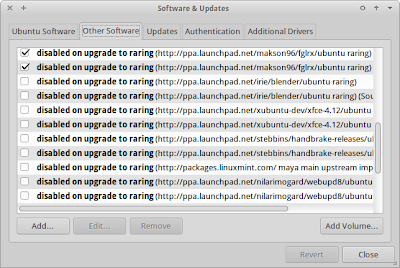
After doing a release upgrade, 3rd-party PPAs are disabled by default. Let's learn how to enable them again. Enable PPAs Run "Synaptic Package Manager" using Applications Menu > System > Synaptic Package Manager . If Synaptic not installed, open a terminal window and run: sudo apt-get install synaptic -y Open Settings > Repositories and select the Other Software tab. Identify the entries that start with disabled on upgrade to and enable them using the checkbox. Close and Reload.

[HOW TO] Upgrade Xubuntu 12.10 to 13.04

Image
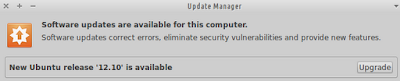
In this article we'll see how to upgrade Xubuntu 12.10 to Xubuntu 13.04, using both a graphical method and a command line method. But first there's a few thing to bear in mind: Backup your files. The upgrade might take some time, so be patient. If you added PPAs manually they'll be disabled. If they support 13.04 you can enable them again later. Upgrade from Software Updater Open "Update Manager" ( Applications Menu > Settings Manager > Software Updater ). On the dialog presented to you (similar to the image above) click the "Upgrade" button next to the message that is saying that a new Xubuntu version is available. Then follow the instructions presented to you. Note: If during the installation you are given a list of services that should be stopped/restarted, for each service run this command (replace SERVICE_NAME with the service name from the list): sudo service SERVICE_NAME restart Upgrade from terminal...

[HOW TO] Install Xubuntu on USB device

Image
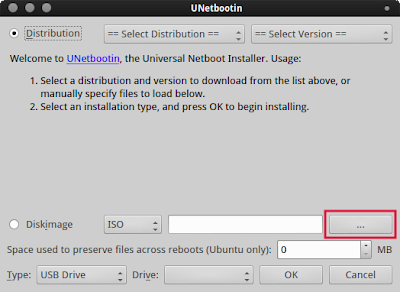
Xubuntu 13.04 image size is bigger than the size available on a CD. So, the image must now be burned on a DVD or installed on a USB device. This article teaches how to install a image file on USB device using UNetbootin . Install ISO on USB First we need to install UNetbootin . Open a terminal window and run: sudo apt-get install unetbootin extlinux -y Run UNetbootin using the command unetbootin or using the Applications Menu > System > UNetbootin launcher. Click on the "Select disk image" button. Select the image file. Make sure your USB drive is mounted and select it. Then press OK. Be patient while UNetbootin installs the image on the device. Finally, either restart your PC and start using the USB drive or continue working and restart later. Important! you must change your boot settings so that your PC will boot on USB instead of hard disk drive.

[HOW TO] Add Application Launcher to Xfce's Panel

Image
A application launcher is a little icon on Xfce's panel that launches an application when it's clicked. Lets see one way to add a launcher to the panel. Some application launchers on Xfce's Panel Add application launcher Right-click on panel then open Panel Preferences On the Items tab click the Add new item button. Select Launcher , click Add then Close . The launcher will be added to the bottom of the items list. Select it and click the Edit Item button. Click the Add item to Launcher button. Select the application and click Add . When you return to the panel's list of items you can move the launcher up and down, thus moving it left or right on the panel.

[HOW TO] Upgrade Xubuntu 12.04 to Xubuntu 12.10

Image
In this article we'll see how to upgrade Xubuntu 12.04 to Xubuntu 12.10, using both a graphical method and a command line method. But first there's a few thing to bear in mind: Backup your files. Xubuntu 12.04 is LTS (Long Term Supported) so it might be more stable than subsequent releases. The upgrade might take some time, so be patient. If you added PPAs manually they'll be disabled. If they support 12.10 you can add them again later. Upgrade from Update Manager Open "Update Manager" ( Applications Menu > System > Update Manager ). Then proceed as described here . Essentially all you have to do is change the update settings so that you'll be notified when there's a newer version available, reopen "Update Manager" and click the "Upgrade" button next to the message that is saying that a new Xubuntu version is available. Upgrade from terminal Open a terminal window and run the command below. Then...

[HOW TO] Backup with Déjà Dup in Xubuntu

Image
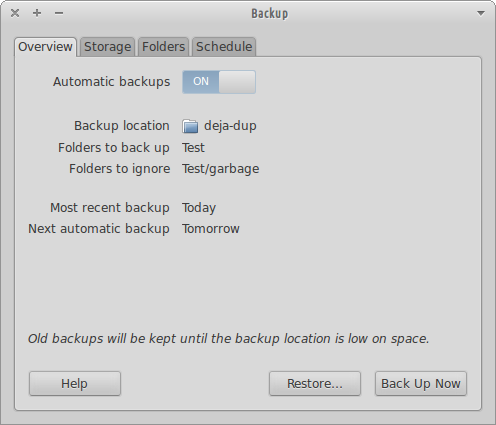
Déjà Dup is a simple backup tool. It hides the complexity of backing up the Right Way (encrypted, off-site, and regular) and uses duplicity as the backend. Install Open a terminal window and run: sudo apt-get install deja-dup -y Usage Déjà Dup can be accessed via Applications Menu > System > Backup or typing the following command: deja-dup-preferences . On the Overview tab a summary of your backup settings is displayed and have options to enable automatic backups, restore a backup or perform a backup. On the Storage tab you can choose a location for your backups. It can be a remote location. On the Folders tab you can choose what folders to backup and what folders to ignore. On the Schedule tab you can choose the backup frequency (Daily, Weekly, Every 2 Week, Monthly) and the old backups removal policy (keep backups at least a month, two months, three month, six months, a year or forever). Backup ...

[HOW TO] Add a new user account in Xubuntu

Image
Here's the steps for creating a new user in Xubuntu: Open Applications Menu > System > Users and Groups . On the following "User Settings" dialog click on the add button. Now it's time to write the user's name. The dialog will suggest some usernames based on the user's name, but another one can be used as long as the rules presented are followed. Now a password for the new user must be selected. The password can be automatically generated (don't forget to memorize it). The new user is now available for login.

[HOW TO] Deep Freeze Xubuntu with Ofris

Image
UPDATED: 26/07/12 Whats is "Deep Freeze"? Deep Freeze, by Faronic, is an application for Microsoft Windows and MAC OS X which restores the computer back to its original configuration each time the system is restarted. In Xubuntu the same can be accomplished using Ofris. Ofris is a command line tool , easy to use and offers options to lock the system for a specific user or for all users. Please be aware that Ofris only freezes the users' home directory ; applications installed while the system is locked with remain installed after unlocking. There's also an AppIndicator available that goes by the name of Gofris, which makes all the Offris options available with a couple of clicks. Even though Ofris and Gofris work on recent Xubuntu distributions, there's no package available on the PPA, so instructions for both older and newer Xubuntu releases are provided. Instructions should work for 32 and 64 bits machines. Please note that Ofris and Gofris are con...

[HOW TO] Graphically edit Xfce/Xubuntu Applications Menu

Image
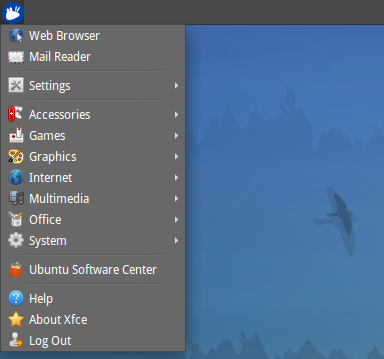
Xfce/Xubuntu Applications Menu is a panel plugin that displays a menu that allows access to installed applications. Xfce/Xubuntu Applications Menu The items on the menu can be edited using one tool called Alacarte. Alacarte can be access at Applications Menu > Settings > Main Menu or just type alacarte in the command line (or in xf4run). Main Menu editor's (alacarte) interface The Main Menu editor has 3 main sections: Menus list (left), Items list (center) and Action buttons (right). The Menus list sorts applications by category. Each menu can hold items and other menus (a menu has to possess at least one item to be displayed). The available action buttons for menus are "New Menu" and "New Item", and their name is self-explanatory. The Item list displays the list of application launchers for the selected menu/category. Items can be moved up and down on the list and their attributes (name, command...) can be e...

[HOW TO] Change window title bar theme (xfwm4) in Xubuntu

Image
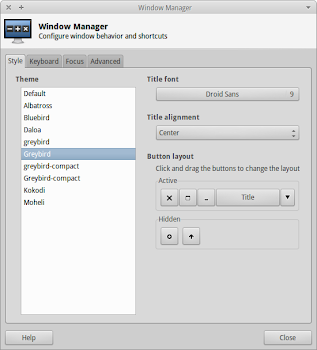
Click on the "Applications Menu" then select: Settings > Window Manager , if you're running Xfce 4.10 Settings > Settings Manager > Window Manager , if you're running Xfce 4.8 In either case, on the 'Style' tab choose one the of available themes in your system.

[HOW TO] Install desktop themes in Xubuntu

Image
There're three categories of themes: Gtk themes (that control how the window contents is themed), Window title bar themes (known as xfwm4 themes in Xfce/Xubuntu) and icon themes. Xubuntu 12.04 customized with the 'Bluebird' Gtk and xfwm4 themes and 'Faenza' icon theme How to install themes Depending on the category of theme you're installing, extract the theme to one of the following locations: Gtk and xfwm4 themes: ~/.themes Icon themes: ~/.icons Hint: If you're running Xfce 4.10 you can drag-and-drop the *.tar.gz file containing the theme in the dialog for changing the theme. Where to get themes Eyecandy for your GNOME-Desktop - GNOME-Look.org Eyecandy for your Xfce-Desktop - Xfce-Look.org Xfce themes at DeviantART

[HOW TO] Change desktop theme in Xubuntu

Image
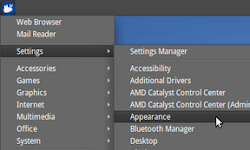
Click on the "Applications Menu" then select: Settings > Appearance , if you're running Xfce 4.10 Settings > Settings Manager > Appearance , if you're running Xfce 4.8 On the left: Opening appearance dialog in Xubuntu. On the right: Change appearance dialog in Xubuntu On the Appearance dialog you have the possibility to change the current desktop theme to another one that's installed in your system.

[HOW TO] Rip VCD in Xubuntu

VCD (Video Compact Disc) is a CD that contains video and sound compressed as MPEG. This MPEG file can be extracted using the vcdxrip tool from the vcdimager package. Install vcdimager Open a terminal window and run: sudo apt-get install vcdimager -y Extract MPEG track This step depends on the source of the VCD (CD-ROM, *.bin, *.ngr, ...). The general command form for extracting the MPEG file we'll use is: vcdxrip -p --nofile SOURCE_OPTION IMAGE_FILE Where IMAGE_FILE is something like /dev/sr0, videocd.bin, videocd.ngr, ... and SOURCE_OPTION is one of the following (between parenthesis is the description, don't type it): -b (bin image file) -c (cue image file) -N (Nero image file) --toc-file ("toc" image file) -C (CD-ROM) Extract example for bin image: vcdxrip -p --nofiles -b videocd.bin The program will extract the MPEG as avseq01.mpg . References Rip VCD to .avi? at Ubuntu Forums What is VCD?

[HOW TO] Encode Video for Android in Xubuntu

Image
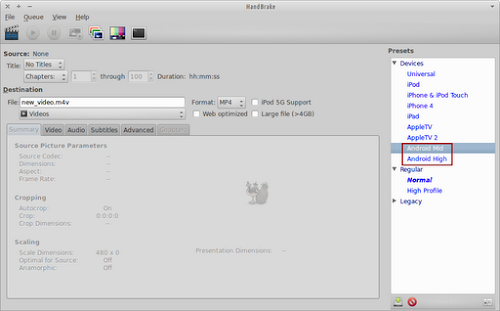
HandBrake is a video transcoder and it comes with some presets that provide quick access to some common settings. For Android there are two built-in presets: one for small screen devices and another one for devices with bigger screen. Bellow you'll find how to use them, both from the command line and the graphical interface. USING HANDBRAKE CLI Open a terminal window and run one of the following two commands (!important use capital 'zed'): # Android Small Device (screen size HandBrake -i video_in -o video_out.mp4 -Z "Android Mid" # Android Big Device (screen size >= 720x...) HandBrake -i video_in -o video_out.mp4 -Z "Android High" USING HANDBRAKE GUI The same task can be accomplished using HandBrake with graphical interface. Just select "Android Mid" or "Android High" from the device preset list after selecting the source file. Related Posts Install HandBrake in [X]Ubuntu 12.04 (deb) Install Hand...

Fix look of KDE/Qt applications in Xfce/Xubuntu

Image
On a fresh install of Xubuntu 11.10, Qt (KDE) applications don't use the same style as the other applications. VLC using the wrong style VLC using the desktop style (greybird) To fix this just install libgnome2-0 , via terminal: sudo apt-get install libgnome2-0 Or Click here to install libgnome2-0