Posts

Showing posts with the label PPA

[HOW TO] Install lastest Krita in Xubuntu from PPA

Image
In its essence Krita is a software for drawing (you can see some examples at the top of this site's right sidebar). Krita development is on constant motion and the official Ubuntu packaging can keep up. If you would like to try the latest Krita enhancements without the hassle of compiling it yourself from source, see below how to. Install from Krita Lime PPA Open a terminal window and run: sudo add-apt-repository ppa:dimula73/krita -y && sudo apt-get update && sudo apt-get install krita-testing krita-testing-dbg -y After installing you should restart your computer. Usage Krita can be accessed via Applications Menu > Graphics >Krita or typing the following command: krita . References Krita got a PPA : Krita Lime
[HOW TO] Enable PPAs after Release Upgrade

Image
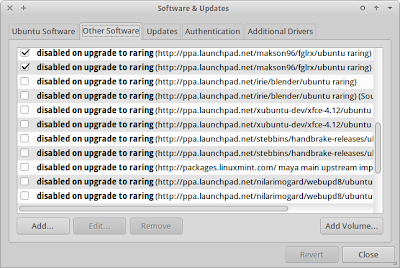
After doing a release upgrade, 3rd-party PPAs are disabled by default. Let's learn how to enable them again. Enable PPAs Run "Synaptic Package Manager" using Applications Menu > System > Synaptic Package Manager . If Synaptic not installed, open a terminal window and run: sudo apt-get install synaptic -y Open Settings > Repositories and select the Other Software tab. Identify the entries that start with disabled on upgrade to and enable them using the checkbox. Close and Reload.

[HOW TO] Install latest LibreOffice in Xubuntu (PPA)

Image
This article shows how to install the latest version of the productivity suite, LibreOffice. When I say "latest" I'm referring to alphas and betas, so I'll quote the "LibreOffice Packaging" team: Only for the most brave and courageous! If you're running Xubuntu 12.04, LibreOffice 3.6 RC will be installed. And LibreOffice 4.0 alpha will be installed for the Xubuntu 12.10 users. Install Open a terminal window and run: sudo apt-get purge libreoffice-core -y && sudo add-apt-repository ppa:libreoffice/ppa -y && sudo apt-get update && sudo apt-get install libreoffice -y Usage LibreOffice can be accessed via Applications Menu > Office > LibreOffice . References LibreOffice Pre-Releases | PPA

[HOW TO] Find which PPA repository a package belongs to

To find out the repository address for a package we use the policy argument of the apt-get tool. Syntax Open a terminal window and run: apt-cache policy PACKAGE_NAME Example The repository link is presented on the line second to last: apt-cache policy diodon diodon: Installed: 1.0.2-0ubuntu0~quantal1 Candidate: 1.0.2-0ubuntu0~quantal1 Version table: *** 1.0.2-0ubuntu0~quantal1 0 500 http://ppa.launchpad.net/diodon-team/stable/ubuntu/ quantal/main amd64 Packages 100 /var/lib/dpkg/status References How To Find Out To Which PPA Repository A Package Belongs To | Web Upd8

Listing hardware information with I-Nex in Xubuntu

Image
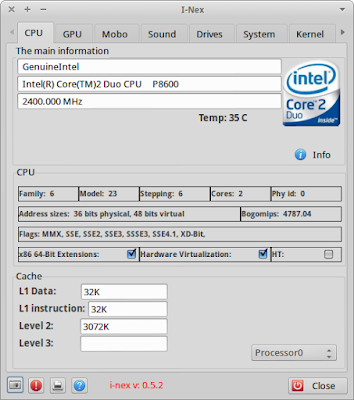
Updated: 10 June 2015 I-Nex is a hardware information gatherer with graphical interface. It displays detailed hardware information and some software information about the Operating System, Kernel and packages. I-Nex is quick gathering the information. The interface is well organized and easy to understand. I-Nex also provides the possibility of generating a detailed report and create a screenshot directly from the application. I-Nex running on Xubuntu Install I-Nex requires a up-to-date Gambas 3 (used for the graphical interface), so we need to add the Gambas 3 PPA. To install them both, open a terminal window and run: sudo add-apt-repository ppa:gambas-team/gambas3 -y && sudo add-apt-repository ppa:i-nex-development-team/stable -y && sudo apt-get update && sudo apt-get install i-nex -y Usage I-Nex can be accessed via Applications Menu > System > I-Nex or typing the following command: i-nex . Uninstall If you wish ...

[HOW TO] Install Plank dock in Xubuntu

Image
Plank is a lightweight dock that provides simple functionality: launch applications and alternate between running applications. Here's how to install it in Xubuntu via PPA. Install Open a terminal window and run: sudo add-apt-repository ppa:ricotz/docky -y && sudo apt-get update && sudo apt-get install plank -y Usage Plank can be accessed via Applications Menu > Accessories > Plank or typing the following command: plank . Configure Plank doesn't have a graphical configuration interface, you need to edit the text file: ~/.config/plank/dock1/settings . The configuration file has comments that explain how to configure it. Add launchers to Plank Right-click on a running application and select "Keep in dock". Remove launchers from Plank Drag-and-drop the launcher outside plank. References Plank – The Most Lightweight Dock For Ubuntu Plank: Introduction

[HOW TO] Install Thunar 1.5.1 in Xubuntu (ppa)

Image
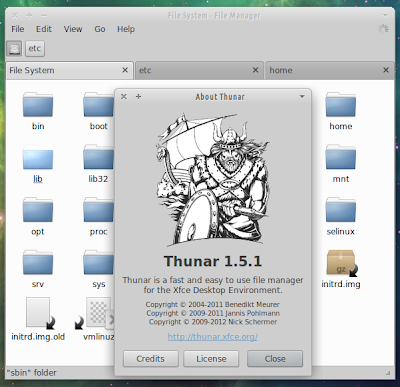
Thunar 1.5.1 has been released and it brings tabs support and fixes many bugs (among them the double volume bug). Here's how to install it using Xubuntu Developers PPA. Thunar 1.5.1 running on Xubuntu 12.04 Note for Xubuntu 12.04 users: the Xfce 4.10 PPA is required and adding it will upgrade Xfce 4.8 to 4.10. Install Open a terminal window and run (tested in 12.04 and 12.10) : if [ $(lsb_release -r -s) == "12.04" ]; then sudo add-apt-repository ppa:xubuntu-dev/xfce-4.10 -y; fi && sudo add-apt-repository ppa:xubuntu-dev/xfce-4.12 -y && sudo apt-get update && sudo apt-get dist-upgrade -y Finally, log out/log in. Usage Thunar can be accessed via Applications Menu > Accessories > File Manager or typing the following command: thunar . References Xfce 4.12 packages: Xubuntu Developers Team

Install Wine 1.5.11 in Xubuntu (PPA)

Wine 1.5.11 has been released with the following major changes: Multi-channel support in the ALSA driver. Removal of the big X11 lock. Support for pair positioning adjustments in Uniscribe. More I/O stream implementations in the C++ runtime. Various bug fixes. A total of 36 were fixed in applications such as "SIM City 4", "S.T.A.L.K.E.R.", "F.E.A.R.3", "Fallout 3", "Prince of Persia: Forgotten Sands", etc, and GeForce GT 630M (with Bumblebee) is now properly recognized. Ubuntu repositories is still 1.4. Bellow instructions are provided to install the latest Wine version from the "Latest official WineHQ releases" PPA. Install Open a terminal window and run this line: sudo apt-add-repository ppa:ubuntu-wine/ppa -y && sudo apt-get update && if [ `uname -m` == "x86_64" ]; then wine="wine1.5-amd64"; else wine="wine1.5"; fi && echo $wine && sudo apt-get...

[HOW TO] Install HandBrake in Xubuntu 12.04/12.10 (ppa)

Updated 26/10/12: These instructions are also valid for Quantal (12.10). On a previous article I wrote about installing HandBrake in Xubuntu 12.04 Precise Pangolin, however, at that moment there weren't packages built for Precise, so we had to install the packages for Oneiric manually. Now packages for Precise are available. Bellow instructions are provided for adding the PPA and install HandBrake. Install Open a terminal window and run (you can choose to install command line HandBrake and/or HandBrake with GUI): sudo add-apt-repository ppa:stebbins/handbrake-releases -y sudo apt-get update # Run to install HandBrake with command line interface sudo apt-get install handbrake-cli -y # Run to install HandBrake with graphical interface sudo apt-get install handbrake-gtk -y Usage HandBrake can be accessed via Applications Menu > Multimedia > HandBrake or typing the command HandBrakeCli for command line HandBrake and typing the command ghb for HandBrake with GU...

Cover Thumbnailer for Nautilus

Image
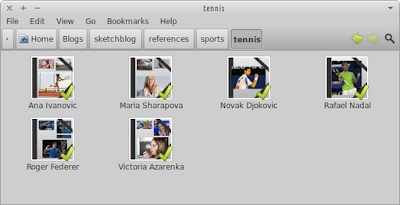
Cover Thumbnailer is a small Python script which displays music album's covers and a preview of pictures which are in a folder in nautilus, the GNOME's file browser. Cover Thumbnailer generate the folder's thumbnail automatically, like any other thumbnailer ; you don't have to generate thumbnails manually. Cover Thumbnailer 0.8.3 works with Nautilus 3.x Cover Thumbnailer 0.8.2 and previous work with Nautilus 2.x Using the PPA bellow, the latest version (0.8.3 at the time of writing) will be installed, which is compatible with nautilus's current version in Xubuntu 11.10/12.04. Cover thumbnailer running on Xubuntu 12.04 Install Open a terminal window and run: sudo add-apt-repository ppa:flozz/flozz -y sudo apt-get update && sudo apt-get install cover-thumbnailer -y Usage Cover thumbnailer should start working automatically after installation (by default it creates thumbnails for the ~/Pictures and ~/Music directories)....

[HOW TO] Install Ambiance and Radiance Themes in Xubuntu (ppa)

Image
Ambiance and Radiance are two Gtk themes and they have a version compatible with Xfce/Xubuntu. Ambiance has dark panel, dark toolbar and dark window title bar, while Radiance displays this elements with light colors. There are also some color variations for each theme: Blue, Graphite, Green, Orange, Pink, Purple, Red and Yellow. Radiance theme at top left and Ambiance at top right. The panel appearance of each theme is beneath it. At the bottom are two color variations of the Ambiance theme. Install Open a terminal window and run: # Add Ravefinity Project PPA sudo add-apt-repository ppa:ravefinity-project/ppa -y # Update package information and install ambiance and radiance themes sudo apt-get update && sudo apt-get install ambiance-xfce-lxde radiance-xfce-lxde # Install other colors variations (blue, green, purple, ...): sudo apt-get install ambiance-colors-xfce-lxde radiance-colors-xfce-lxd...

[HOW TO] Create QR Codes in Xubuntu 12.04

Image
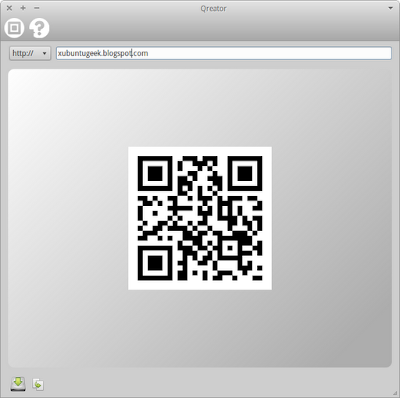
A QR code is a type of barcode that consists of black modules arranged in a square pattern on a white background. It's a compact way of providing information and a smartphone can be used for reading that information. Qreator is an application that can create QR codes for URL, Text, Location and Wifi Settings. The QR code can be saved as a PNG image file or copied to the clipboard. Install Open a terminal window and run: sudo apt-get install qreator -y OR Click here to install Qreator Usage Qreator is available at Applications Menu > Accessories > Qreator . It can also be accessed with the command /opt/extras.ubuntu.com/qreator/bin/qreator , supplying it one of the following options: Usage: qreator [options] Options: --version show program's version number and exit -h, --help show this help message and exit -v, --verbose Show debug messages (-vv debugs qreator_lib also) -u, --url Create a QR code for a URL -t, -...

[HOW TO] Install Inkscape in Xubuntu (ppa)

Image
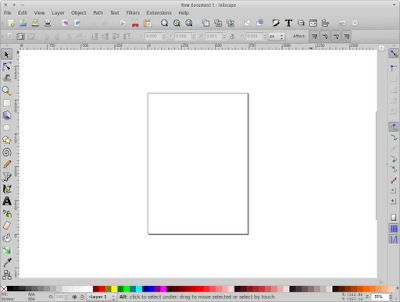
Inkscape is an Open Source vector graphics editor, with capabilities similar to Illustrator, CorelDraw, or Xara X, using the W3C standard Scalable Vector Graphics (SVG) file format. Inkscape supports many advanced SVG features (markers, clones, alpha blending, etc.) and great care is taken in designing a streamlined interface. It is very easy to edit nodes, perform complex path operations, trace bitmaps and much more. We also aim to maintain a thriving user and developer community by using open, community-oriented development. Some great Inkscape tutorials can be found: here . At FlossManuals there's a Inkscape manual that introduces the program basics. And there's also a "Getting Started Guide" available here , written by Bethany Hiitola. Install Open a terminal window and run: sudo apt-get install inkscape -y References Inkscape. Draw Freely

[HOW TO] Install mcomix in Xubuntu (ppa)

Image
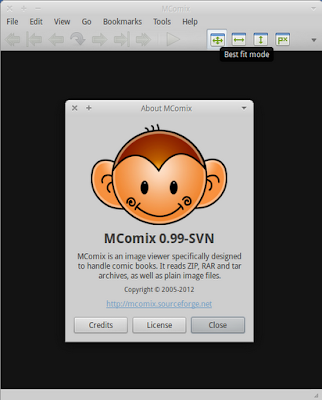
MComix is a comic book viewer that can read images from plain image files and from compressed image archives (cbr, cbz, zip, 7z, ...). MComix is a fork of the Comix project , and aims to add bug fixes and stability improvements after Comix development came to a halt in late 2009. Install Open a terminal window and run: sudo add-apt-repository ppa:blca/ppa -y && sudo apt-get update && sudo apt-get install mcomix -y Once installed MComix is available under the Graphics section of Xubuntu's Applications Menu. References MComix Website

Install diodon (clipboard manager) in [X]Ubuntu 12.04 (ppa)

"Diodon is a lightweight clipboard manager for Linux written in Vala which "aims to be the best integrated clipboard manager for the Gnome/GTK+ desktop". It lightweight having a small memory footprint." Diodon features include Ubuntu indicator, clipboard sync (primary selection and Ctrl+C / Ctrl+V clipboard) and an option to set the clipboard size. Install Open a terminal window and run: sudo add-apt-repository ppa:diodon-team/stable -y sudo apt-get update && sudo apt-get install diodon -y Just in case you're running Ubuntu (and Unity), you might also want to install the diodon-plugins package which contains the "Unity Lens" plugin that provides access to clipboard history with the unity dash: sudo apt-get install diodon-plugins -y Footnotes Run diodon pressing Alt+F2 and type diodon before hitting return Access diodon clipboard history with the shortcut Ctrl+Alt+V (it can be changed in the preferences). Diodon will ...

Install Xfce 4.10 in Xubuntu 12.04 Precise (ppa)

Image
Xfce 4.10 has been released. Just below this paragraph are some highlights (more information is available at Xfce 4.10 tour ). In the "Install" section are instructions for installing Xfce in Xubuntu 12.04 Precise Pangolin. The application finder has been completely rewritten and combines the functionality of the old appfinder and xfrun4 (press Alt+F2 and start typing the name of the application you want to open). The new settings manager groups configuration dialogs in categories and allows you to search for their names or descriptions. The new MIME type editor does just that. It allows you to easily assign a default application to a file type, see your changes and reset them to default settings when necessary. In 4.10 you can drag and drop a tarball with a downloaded theme onto the style or icon list. Xfce will attempt to extract and install the files into th...

Install Oracle VM VirtualBox in [X]Ubuntu/Debian (ppa)

Image
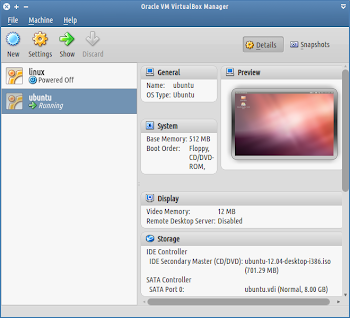
Oracle VM VirtualBox (formerly Sun VirtualBox, Sun xVM VirtualBox and innotek VirtualBox) is an virtualization software package that's installed on an existing host operating system as an application; this host application allows additional guest operating systems, each known as a Guest OS, to be loaded and run, each with its own virtual environment. Install Open a terminal window and run: # 1 sudo sh -c "echo deb http://download.virtualbox.org/virtualbox/debian `lsb_release -a | egrep -i codename | awk '{print $2}'` contrib > /etc/apt/sources.list.d/virtualbox.list" # 2 wget -q http://download.virtualbox.org/virtualbox/debian/oracle_vbox.asc -O- | sudo apt-key add - # 3 sudo apt-get update && sudo apt-get install virtualbox virtualbox-qt virtualbox-guest-additions-iso -y # 4 sudo usermod -a -G vboxusers $USER References VirtualBox 4.1.14 for Linux VirtualBox at Wikipedia Ubuntu – Distribution Agnostic Virtualbox Auto...