Posts

Showing posts with the label Indicator-plugin

[HOW TO] Deep Freeze Xubuntu with Ofris

Image
UPDATED: 26/07/12 Whats is "Deep Freeze"? Deep Freeze, by Faronic, is an application for Microsoft Windows and MAC OS X which restores the computer back to its original configuration each time the system is restarted. In Xubuntu the same can be accomplished using Ofris. Ofris is a command line tool , easy to use and offers options to lock the system for a specific user or for all users. Please be aware that Ofris only freezes the users' home directory ; applications installed while the system is locked with remain installed after unlocking. There's also an AppIndicator available that goes by the name of Gofris, which makes all the Offris options available with a couple of clicks. Even though Ofris and Gofris work on recent Xubuntu distributions, there's no package available on the PPA, so instructions for both older and newer Xubuntu releases are provided. Instructions should work for 32 and 64 bits machines. Please note that Ofris and Gofris are con...
[HOW TO] Disable/Enable touchpad with indicator in Xubuntu

Image
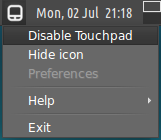
Touchpad-Indicator is an indicator program that allows to manually enable/disable the touchpad. Touchpad-Indicator running in Xubuntu 12.04 Install Open a terminal window and run: sudo add-apt-repository ppa:atareao/atareao sudo apt-get update sudo apt-get install touchpad-indicator Usage Touchpad-indicator can be accessed via Applications Menu > Accessories > Touchpad-Indicator or running the command: touchpad-indicator . When running, the Touchpad-Indicator will be placed in the Xfce's panel Indicator-Plugin, then just click on it to access a menu that gives access to the options of enabling/disabling the touchpad, hide the icon, help, preferences and exit. There's a keyboard shortcut (Ctrl+C) to enable/disable the touchpad that can be changed in the preferences. Touchpad-Indicator preferences References How to disable-enable touchpad in ubuntu 11.10 atareao-team PPA

Display keyboard lock keys status in Xubuntu

Image
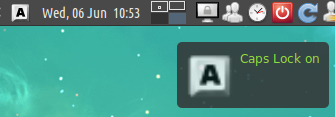
Indicator Keyblock is an appindicator that displays the status (on/off) of keyboard lock keys (caps lock, num lock and scroll lock). It's very useful when the keyboard doesn't have LEDs to display this information. Install Open a terminal window and run: sudo add-apt-repository ppa:tsbarnes/indicator-keylock -y sudo apt-get update && sudo apt-get install indicator-keylock -y To install Indicator Keylock icon themes run: sudo apt-get install indicator-keylock-ubuntu-mono indicator-keylock-humanity indicator-keylock-elementary -y Run Press Alt+F2 (or run a terminal emulator) and enter: indicator-keylock ( tip: You can add it to Xfce session startup using this as the command, see this ). Note If you unchecked the option "Use an application indicator" and now want it back, run gsettings set apps.indicators.keylock use-indicator true Related Posts Add application to Xfce/Xubuntu session startup References Indicator Keylock Displ...

[FIX] Pastie doesn't appear on Xfce panel (indicator-plugin)

Problem: Even though pastie is running it doesn't appear on Xfce panel's indicator-plugin. Well, this happens when the icon theme being used doesn't possess a "gtk-paste" icon. And that's what happens with the default Xubuntu 12.04 icon theme (elementary-xfce-dark). Fortunately, all we need to do is borrow a "gtk-paste" icon from the "Humanity" themes (it comes installed by default in Xubuntu 12.04), and this icon will work well in dark and light panels. Install Open a terminal window and run: # Create a symbolic link to the gtk-paste icon in elementary-xfce sudo ln -s /usr/share/icons/Humanity/actions/16/gtk-paste.svg /usr/share/icons/elementary-xfce/actions/16/gtk-paste.svg sudo ln -s /usr/share/icons/Humanity/actions/48/gtk-paste.svg /usr/share/icons/elementary-xfce/actions/48/gtk-paste.svg sudo ln -s /usr/share/icons/Humanity/actions/24/gtk-paste.svg /usr/share/icons/elementary-xfce/actions/24/gtk-paste.svg sudo ln -s /usr...