Posts

Showing posts with the label Dock

[TIP] DockBarX Xfce Panel Plugin
Image
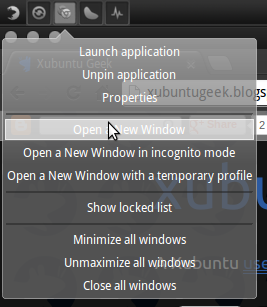
DockBarX is a dock application and is also available as a Xfce Plugin. This allows to have a simple plugin for task management and application launching. The plugin provides other functionality such as progress bars and control Skype, Pidgin, Rhythmbox and Clementine. Install Open a terminal window and run: sudo add-apt-repository ppa:nilarimogard/webupd8 -y && sudo apt-get update && sudo apt-get install --no-install-recommends xfce4-dockbarx-plugin -y Add DockBarX to Xfce's Panel Adding DockBarX plugin to the panel is like adding a launcher (see this ), but you add a DockBarX item instead. Once you add the plugin you can edit its preferences and start pining applications to create launchers! References DockBarX Available as a Xfce Panel Plugin | Web Upd8


[SOLVED] Plank doesn't change theme

Image
Switching Plank's theme it's easy: replace dock.theme and hover.theme in ~/.config/plank/theme . Plank should reflect instantly the changes. However there's a problem: Plank ignores some themes and uses the default one. Well, this happens because the newer version of Plank uses a different notation. Plank using the Gingerbread theme Fix Open dock.theme and hover.theme on a text editor and paste the contents of the files from the new theme into the existing ones. Now find the words PlankDrawingThemeRenderer and PlankDrawingDockThemeRenderer and remove the sub-string Renderer . Don't forget to save. And that's it! Plank should now apply the new theme. By the way, new themes can be found here .

[HOW TO] Install Plank dock in Xubuntu

Image
Plank is a lightweight dock that provides simple functionality: launch applications and alternate between running applications. Here's how to install it in Xubuntu via PPA. Install Open a terminal window and run: sudo add-apt-repository ppa:ricotz/docky -y && sudo apt-get update && sudo apt-get install plank -y Usage Plank can be accessed via Applications Menu > Accessories > Plank or typing the following command: plank . Configure Plank doesn't have a graphical configuration interface, you need to edit the text file: ~/.config/plank/dock1/settings . The configuration file has comments that explain how to configure it. Add launchers to Plank Right-click on a running application and select "Keep in dock". Remove launchers from Plank Drag-and-drop the launcher outside plank. References Plank – The Most Lightweight Dock For Ubuntu Plank: Introduction

[HOW TO] Install Awn (Avant Window Navigator) in Xubuntu

Image
Avant Window Navigator (Awn) is a dock-like bar which sits at the bottom of the screen. It has support for launchers, task lists, and third party applets. Awn running on Xubuntu 12.04 Update 25/10/12: Awn is not available in Quantal (12.10). Install Open a terminal window and run the command below. It'll install Awn and all its applets. sudo apt-get install avant-window-navigator awn-applets-all -y Usage Awn can be accessed via Applications Menu > Accessories > Avant Window Navigator or typing the following command: avant-window-navigator . Awn settings (size, position, autohide, applets, ...) can be customized; right-click on Awn and select Dock Settings . Customizing Awn Settings References Awn in Launchpad
