Posts

Showing posts with the label LibreOffice

[HOW TO] Install additional dictionaries for LibreOffice in Xubuntu

When LibreOffice is installed it comes with the English dictionary pre-installed (on a English installation). If you need a dictionary for a language other than English, follow this article. Install First we need to find the right package name. Open a terminal window and run: apt-cache search myspell This will list several myspell packages and in front of the name of the package a description will tell which language the package is for. Annotate the myspell package name. Now use sudo apt-get install MYSPELL_PACKAGE to install the package (replace MYSPELL_PACKAGE with the name determined before). Example for European Portuguese: sudo apt-get install myspell-pt-pt
[HOW TO] Install Flat Icons Theme for LibreOffice

Image
Updated: 07/09/13 In this article we'll learn how to install the flat icons theme for LibreOffice. This theme might become the default theme, but we can start using it now. Flat Icons Theme for LibreOffice Install Flat Icons Open a terminal window and run: cd /usr/share/libreoffice/share/config/ && sudo mv images_human.zip images_human.zip.backup && sudo wget http://blog.goranrakic.com/archives/slike/images_flat.zip -O images_human.zip If the command above outputs something like mv: cannot stat ‘images_human.zip’: No such file or directory , use this command instead: cd /usr/share/libreoffice/share/config/ && sudo mv images.zip images.zip.backup && sudo wget http://blog.goranrakic.com/archives/slike/images.zip -O images.zip References Flat Icons: instale os próximos ícones da interface do Libre-Office

[HOW TO] Install latest LibreOffice in Xubuntu (PPA)

Image
This article shows how to install the latest version of the productivity suite, LibreOffice. When I say "latest" I'm referring to alphas and betas, so I'll quote the "LibreOffice Packaging" team: Only for the most brave and courageous! If you're running Xubuntu 12.04, LibreOffice 3.6 RC will be installed. And LibreOffice 4.0 alpha will be installed for the Xubuntu 12.10 users. Install Open a terminal window and run: sudo apt-get purge libreoffice-core -y && sudo add-apt-repository ppa:libreoffice/ppa -y && sudo apt-get update && sudo apt-get install libreoffice -y Usage LibreOffice can be accessed via Applications Menu > Office > LibreOffice . References LibreOffice Pre-Releases | PPA

[SOLVED] Native look-and-feel for LibreOffice in Xubuntu

Image
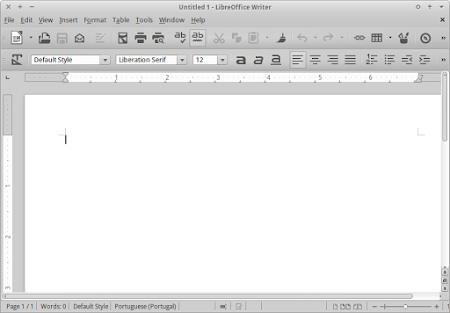
Symptom: The LibreOffice applications (Writer, Calc, ...) don't have the same look as the other applications on your Xubuntu desktop. LibreOffice Writer with mismatch look-and-feel Solution Open a terminal window and run: sudo apt-get install libreoffice-gtk -y After installing the libreoffice-gtk package, the LibreOffice Applications will have the system look-and-feel. LibreOffice Writer with native look-and-feel

[HOW TO] Install LibreOffice in Xubuntu

Image
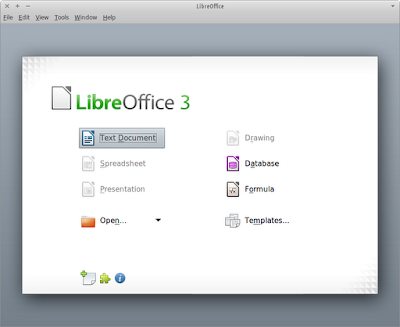
If you need a more comprehensive and complete office suite for your Xubuntu desktop, LibreOffice is the answer. LibreOffice has the following main components: Base: database front-end Calc: spreadsheet editor Draw: diagrams and sketches builder Impress: presentation creator Math: equation editor Writer: word processor Install all components at-once If you want to install the complete suite, open a terminal window and run: sudo apt-get install libreoffice libreoffice-gtk -y Install only the components you need First, let's install the libreoffice-gtk that will provide desktop integration (the office applications will has the system look-and-feel) and will automatically install the core functionality. sudo apt-get install libreoffice-gtk Then run the commands that install the components you need: # Install Base sudo apt-get install libreoffice-base -y # Install Calc sudo apt-get install libreoffice-calc -y # Install Draw s...