Posts

Showing posts with the label MintMenu

[HOW TO] Assign keyboard shortcut to bring up MintMenu
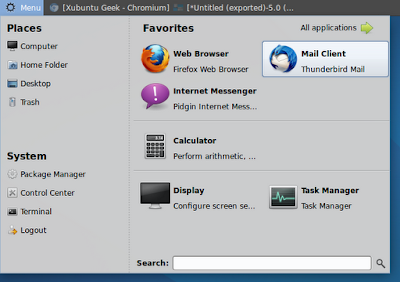
Image
If you have Mint Menu installed and tried to assign a keyboard shortcut to bring it up, you might have noticed that when you hit the shortcut nothing happens. In this article we'll learn how to fix that. MintMenu running on Xubuntu Install Open a terminal window and run: sudo apt-get install python-keybinder && sudo sed -i 's/from deskbar.core.keybinder import tomboy_keybinder_bind as bind_key/from keybinder import bind as bind_key/' /usr/lib/linuxmint/mintMenu/mintMenu.py && killall mintmenu After running this, you'll see a dialog informing that the applet crashed. Just hit the reload button. After reloading you can try hitting the keyboard shortcut to summon the menu. The keyboard shortcut can be changed in the menu preferences's 'Main button' tab (right-click on the menu button and select 'Preferences' from the pop-up menu). For instance, you can assign the Super key (Windows key) by t...

[HOW TO] Install Mint menu in Xubuntu

Image
UPDATED: 25/07/12 Here's the instructions for adding the Linux Mint Menu to Xubuntu. Linux Mint Menu running on Xubuntu 12.04 Install Mint Menu NOTE: Before proceeding please confirm that you have Xfce 4.10 installed (Applications Menu > About Xfce), because xfce4-xfapplet-plugin depends on libxfce4util6 >= 4.9.0 and xfce4-panel >= 4.9.2 and those versions are available in the Xfce 4.10 Dev PPA. You can learn on how to install Xfce 4.10 here .   Copy and paste the line below on a terminal window. This line adds the Linux Mint repository and its key and then installs mintmenu and xfce4-xfapplet-plugin packages. echo 'deb http://packages.linuxmint.com/ maya main upstream import' | sudo tee /etc/apt/sources.list.d/linuxmint.list && key=3EE67F3D0FF405B2 && gpg --keyserver subkeys.pgp.net --recv-keys $key && gpg --armor --export $key | sudo apt-key add - && sudo apt-get update && sudo apt-get i...