Posts

Showing posts with the label Xubuntu

[HOW TO] Use Xfce4 Terminal as a Quake-like console
Image
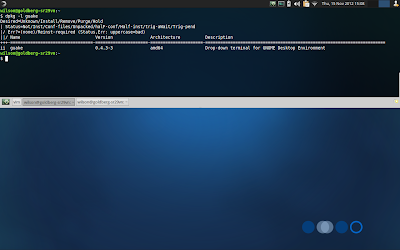
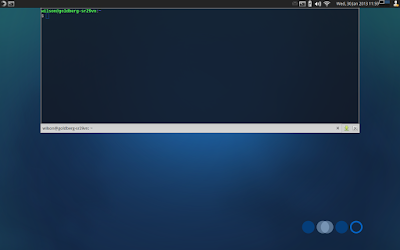
Since version 0.6, Xfce4 Terminal provides a option to use it as a drop-down console, just like Guake and Tilda . Install Xfce4 Terminal 0.6.x is installed when Xfce is upgraded to 4.12. So if you're running Xubuntu 12.10, all you need is add the Xfce 4.12 PPA. Xubuntu 12.04 users have to add Xfce 4.10 first and only then add the Xfce 4.12 PPA. But do not worry, installation is as simple as navigating to this page and coping and pasting the command written on the Install section on a terminal window. The command will add Xfce 4.10 PPA if you're running Xubuntu 12.04 and will upgrade Xfce and its related programs (Xfce4 Terminal, Thunar, etc). Usage Xfce4 Terminal drop-down feature is available as a command line option: xfce4-terminal --drop-down . You can assign a keyboard shortcut for summoning the terminal ( Settings Manager > Keyboard > Application Keyboard Shortcuts ). The command bellow will add F4 as the key to summon the termina...

[HOW TO] Play Encrypted DVDs on Xubuntu

Image
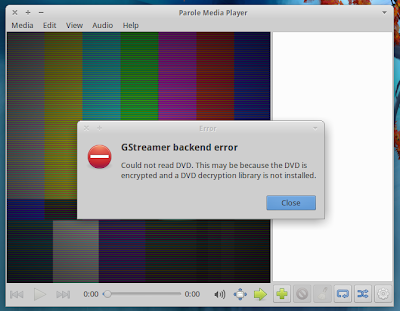
If you try to play an encrypted DVD on Xubuntu (most likely using the default player, Parole) you'll get an error message: To play encrypted DVDs, we need the libdvdcss2 package. Here's how to install it in Xubuntu. Install Open a terminal window. First we need to enable Medibuntu repository: sudo wget --output-document=/etc/apt/sources.list.d/medibuntu.list http://www.medibuntu.org/sources.list.d/$(lsb_release -cs).list && sudo apt-get --quiet update && sudo apt-get --yes --quiet --allow-unauthenticated install medibuntu-keyring && sudo apt-get --quiet update Then we install libdvdcss2: sudo apt-get install libdvdcss2 -y That's it! You can now play encrypted DVDs on Xubuntu. References Medibuntu

[HOW TO] Install Plank dock in Xubuntu

Image
Plank is a lightweight dock that provides simple functionality: launch applications and alternate between running applications. Here's how to install it in Xubuntu via PPA. Install Open a terminal window and run: sudo add-apt-repository ppa:ricotz/docky -y && sudo apt-get update && sudo apt-get install plank -y Usage Plank can be accessed via Applications Menu > Accessories > Plank or typing the following command: plank . Configure Plank doesn't have a graphical configuration interface, you need to edit the text file: ~/.config/plank/dock1/settings . The configuration file has comments that explain how to configure it. Add launchers to Plank Right-click on a running application and select "Keep in dock". Remove launchers from Plank Drag-and-drop the launcher outside plank. References Plank – The Most Lightweight Dock For Ubuntu Plank: Introduction

[HOW TO] Install Guake (Quake-like terminal) in Xubuntu

Image
Some time ago I wrote about installing Tilda in Xubuntu . Now I gave Guake a try (another terminal that slides in from the top of the screen). Guake running on Xubuntu There are some reasons for liking Guake better: The width is set to 100% (Tilda has some problems when changing monitors). The height can be adjusted with the mouse. All key bindings can be customized. The tab bar is quite useful and it's easy to rename tabs. Tilda is still a good program, though, so if you're undecided give them both a try and see which suits you best. Install Open a terminal window and run: sudo apt-get install guake -y Usage Guake can be accessed via Applications Menu > Accessories > Guake Terminal or typing the following command: guake . Guake's preferences editor can be directly accessed using the command: guake-prefs or you can right-click on Guake and select Preferences .

[SOLVED] Suspend causes reboot on Sony Vaio

Image
I was using a Sony Vaio SR29VN and when I tried to resume from suspension, the laptop would reboot instead of resuming. I understand that this may affect other models, however, I don't have a list. Luckily it's easy to fix: we need to add acpi_sleep=nonvs kernel option to the grub settings. Fix Edit (with root permissions) the line GRUB_CMDLINE_LINUX on the file /etc/default/grub , adding the option acpi_sleep=nonvs . Then run this on the command line: sudo update-grub2 References suspend causes reboot

[HOW TO] Read documents aloud with Gespeaker

Image
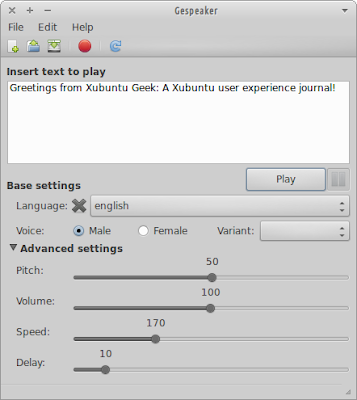
Gespeaker is a GTK+ frontend for eSpeak and Mbrola. It allows to play atext in several languages providing settings for voice, pitch, volume, speed and word gap. There's also the possibility of recording the text played to a WAV file. Gespeaker running on Xubuntu 12.04 Even though Gespeaker latest version (0.8.1-1 at the time of this writing) is dated from June 2010, the version in Ubuntu repositories is still 0.7.3, so in this article we'll install the latest version the project's repository. Install Gespeaker Open a terminal window and run: wget http://goo.gl/kWDhe -O gespeaker.deb | sudo dpkg -i gespeaker.deb | rm gespeaker.deb Install Mbrola Gespeaker can use Mbrola to play text with a more realistic speech. The installation of Mbrola support is accomplished in two steps: First we need to install the mbrola package running this on a terminal window: sudo apt-get install mbrola -y Then the package for a particular language must...

[HOW TO] Customize Xfce Desktop Notifications

Image
Desktop notification are little pop-up windows used to inform the user about an event or display some form of information without getting in the user's way. In Xfce there's a daemon called xfce4-notified which implements the Freedesktop desktop notifications implementation and it's possible to customize its settings. Lets learn how. Xfce Destkop Notification Customize notifications Open a terminal window and run: xfce4-notifyd-config Xfce Notifications Configuration The notifications properties dialog is so simple that it doesn't require much explanation. The theme, the position on screen, the time before disappearing and the opacity can be customized. Notification themes The notification theme can be changed, however, it's not easy to find new themes. They usually come bundled in GTK themes. Some GTK themes provide a xfce4-notifyd theme, just check the presence of the directory xfce-notify-4.0 inside the GTK them...

[NEWS] No Quantal Beta 1 for Xubuntu

Even though Ubuntu has reached Beta 1, there'll be no Beta 1 release for Xubuntu. The Xubuntu team is working on fitting the image on a single CD, tackling outstanding bugs and fixing some visual regressions. If all of this gets done we'll have access to a Beta 2 release. Using a Daily Build Image is possible to test the work in progress. Click to download Ubuntu 12.10 (Quantal Quetzal) Daily Build References No Quantal Beta 1 for Xubuntu

[HOW TO] Make desktop icons text background transparent in Xubuntu

Image
In this article we'll disable the desktop icons text background, making it fully transparent. The image on the right show the icons with transparent text background Install Open a terminal window and run: wget http://goo.gl/02IGS -O - >> ~/.gtkrc-2.0 This command will create a .gtkrc-2.0 file in your home directory (or append the new content to a existing one), and add the following content it: style "xfdesktop-icon-view" { XfdesktopIconView::label-alpha = 0 fg[NORMAL] = "#ffffff" fg[SELECTED] = "#ffffff" fg[ACTIVE] = "#ffffff" } widget_class "*XfdesktopIconView*" style "xfdesktop-icon-view" If you wish to also change the text color just edit the file replacing ffffff with the desired color's code ( tip: you can use Gcolor2 to help you determine the color code). For changes take effect either log out and log in or run the command: killall xfdesktop , and wait...

[NEWS] Xubuntu 12.04.1 released

Xubuntu 12.04.1 has been released today along with the rest of the Ubuntu flavors. This means everybody on 10.04 are able to upgrade to 12.04.1 at their convenience. Users on 10.04 should get an upgrade notification when booting their systems up the next time. Users using Xubuntu 12.04 will be upgraded to 12.04.1 automatically along with normal upgrades. References LTS upgrade time!

Install Wine 1.5.11 in Xubuntu (PPA)

Wine 1.5.11 has been released with the following major changes: Multi-channel support in the ALSA driver. Removal of the big X11 lock. Support for pair positioning adjustments in Uniscribe. More I/O stream implementations in the C++ runtime. Various bug fixes. A total of 36 were fixed in applications such as "SIM City 4", "S.T.A.L.K.E.R.", "F.E.A.R.3", "Fallout 3", "Prince of Persia: Forgotten Sands", etc, and GeForce GT 630M (with Bumblebee) is now properly recognized. Ubuntu repositories is still 1.4. Bellow instructions are provided to install the latest Wine version from the "Latest official WineHQ releases" PPA. Install Open a terminal window and run this line: sudo apt-add-repository ppa:ubuntu-wine/ppa -y && sudo apt-get update && if [ `uname -m` == "x86_64" ]; then wine="wine1.5-amd64"; else wine="wine1.5"; fi && echo $wine && sudo apt-get...

[HOW TO] Install Shoes (Ruby GUI Toolkit) in Xubuntu

Image
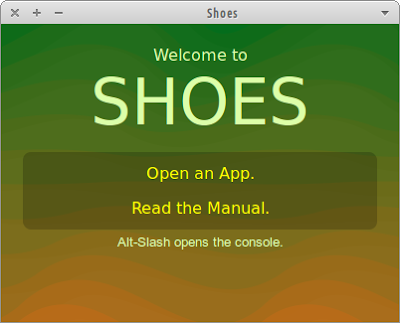
Shoes is a cross-platform toolkit for writing graphical apps easily and artfully using Ruby. Unlike most other GUI toolkits, Shoes is designed to be easy and straightforward without losing power. Figure 1. Shoes (Ruby GUI Toolkit) running on Xubuntu 12.04 Installing Shoes on Xubuntu (or any other Ubuntu distribution) is not as straight forward as it should be. There's a Shoes package in the Ubuntu repositories, however, it's buggy and using it will result in the following error: no such file to load -- rubygems From my experience building Shoes might result in errors during the process. The easiest and simplest way to install Shoes in Xubuntu were to download Shoes 2 (0.r1134), codenamed “Raisins” and use it to run the Shoes programs. It's a older version, but I'm just getting started with Shoes and for now it'll suffice. Install Open a terminal window and run: sudo wget -O /usr/local/bin/shoes http://goo.gl/3cigS && ...

Assign Ctrl+Alt+Del to Xfce's Task Manager in Xubuntu

Image
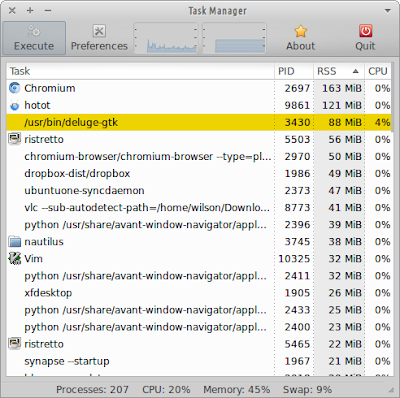
UPDATED: 18/08/12. By default the Ctrl+Alt+Del run xflock4 which locks the desktop. In this article we'll change this keyboard shortcut so that it'll run Xfce's Task Manager instead. Also the Ctrl+Alt+L shortcut will be assigned for running xflock4 . Xfce's Task Manager Install Open a terminal window and run these two commands: # Assign Ctrl+Alt+Del to Task Manager xfconf-query -c xfce4-keyboard-shortcuts -n -p "/commands/custom/<Primary><Alt>Delete" -t string -s "xfce4-taskmanager" # Assign Ctrl+Alt+L to xflock4 xfconf-query -c xfce4-keyboard-shortcuts -n -p "/commands/custom/<Primary>&ltAlt>l" -t string -s "xflock4"

[HOW TO] Install Ruby in Xubuntu

Ruby is an interpreted, dynamic, open source scripting language for easy object-oriented programming. It a focus on simplicity and productivity. It has an elegant syntax that is natural to read and easy to write. In this article will learn how to install the Ruby interpreter and RubyGems in Xubuntu. Then we'll take a quick look at how to run a Ruby program and how to install a gem package. Install Open a terminal window and run: sudo apt-get install ruby rubygems -y Run a Ruby script ruby script.rb Run the interactive interpreter The irb is a tool to execute interactively ruby expressions read from stdin. Run the command irb and type the Ruby command. Examples: $ irb irb(main):001:0> 2**20 => 1048576 irb(main):002:0> name = gets XubuntuGeek => "XubuntuGeek\n" irb(main):003:0> name.chop! => "XubuntuGeek" irb(main):004:0> puts "Hello #{name}" + "!" * 3 Hello XubuntuGeek!!! => nil List remote instal...

[HOW TO] Deepin Software Center in Xubuntu

Image
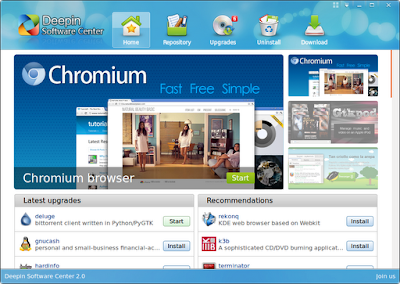
Deepin Software Center (DSC) is the Software Center of the Deepin Linux distribution. It allows Installing new applications in just one click, supports parallel downloading, resuming downloads, update notification and cache cleaning. DSC also comes with colorful skins that can be swapped as your mood changes. Deepin Software Center running on Xubuntu 12.04 Here's a overview video by omgubuntu : Install Open a terminal window and run this line: wget http://goo.gl/EPKv6 -O deepin.deb && sudo apt-get install libc-ares2 aria2 && sudo dpkg -i deepin.deb && rm deeping.deb Usage DSC can be accessed via Applications Menu > System > Deepin Software Center or typing the following command: deepin-software-center . References [How To] Easily Install The Slickest Software Center on Linux Features and Screenshots of Linux Deepin

[HOW TO] Hide partitions on Xubuntu

Image
In this post we'll learn how to hide some partitions on Xubuntu. It should work for other Linux distributions and works for any file manager. Determine Partition Names Before proceeding you must determine the names of the partitions you want to hide (eg. sda5, sdb1). Open a terminal window and run: sudo parted -l This command will output the partition information for each disk (eg. /dev/sda). Pay attention to the partition size and file system type and you should be able to determine the partition number (which is the first column). Just add the partition number to the device name (ignoring the /dev/ part) and you have the partition name. Hide Partitions Now we create the /etc/udev/rules.d/99-hide-disks.rules file and write a line like this KERNEL=="PARTITION_NAME", ENV{UDISKS_PRESENTATION_HIDE}="1" , for each partition. Don't forget to change PARTITION_NAME . Update: 12.10 users must use UDISKS_IGNORE instead of UDISKS_PRES...

[HOW TO] Backup with Déjà Dup in Xubuntu

Image
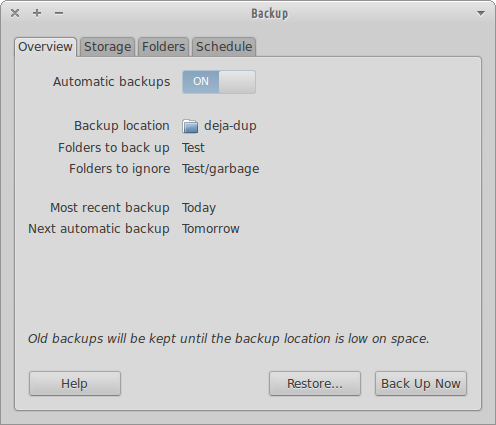
Déjà Dup is a simple backup tool. It hides the complexity of backing up the Right Way (encrypted, off-site, and regular) and uses duplicity as the backend. Install Open a terminal window and run: sudo apt-get install deja-dup -y Usage Déjà Dup can be accessed via Applications Menu > System > Backup or typing the following command: deja-dup-preferences . On the Overview tab a summary of your backup settings is displayed and have options to enable automatic backups, restore a backup or perform a backup. On the Storage tab you can choose a location for your backups. It can be a remote location. On the Folders tab you can choose what folders to backup and what folders to ignore. On the Schedule tab you can choose the backup frequency (Daily, Weekly, Every 2 Week, Monthly) and the old backups removal policy (keep backups at least a month, two months, three month, six months, a year or forever). Backup ...

[SOLVED] Native look-and-feel for Google Earth in Xubuntu

Image
Updated: 17/02/13 On this post we'll make Google Earth look like any other application on Xubuntu. Important: This method doesn't work for the 7.x version. Google Earth running on Xubuntu 12.04 with native look-and-feel. Fix Copy and paste the line bellow on a terminal window. cd /opt/google/earth/free && sudo rm libcurl.so.4 libGLU.so.1 libnss_mdns4_minimal.so.2 libQtCore.so.4 libQtGui.so.4 libQtNetwork.so.4 libQtWebKit.so.4 && sudo wget -q http://goo.gl/hl6Gq -O libfreeimage.so.3 && if [ `uname -m` == "x86_64" ]; then sudo wget -q http://goo.gl/52m1f -O libphonon.so.4; fi && sudo wget -q http://goo.gl/gKAZJ -O googleearth && cd - && sudo apt-get install libcurl4-openssl-dev libqtwebkit4 -y References [How To] Make Google Earth 6.2 Look ‘Native’ in Ubuntu

[HOW TO] Install Google Earth in Xubuntu

Image
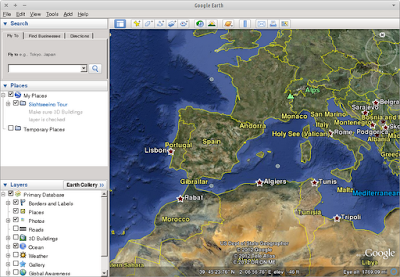
Google Earth is a virtual globe. Here's how to install it in Xubuntu. Google Earth running on Xubuntu 12.04 Install Copy and paste the line bellow on a terminal window. wget -q -O - https://dl-ssl.google.com/linux/linux_signing_key.pub | sudo apt-key add - && sudo sh -c 'echo "deb http://dl.google.com/linux/earth/deb/ stable main" >> /etc/apt/sources.list.d/google.list' && sudo apt-get update && sudo apt-get install google-earth-stable -y Usage Google Earth can be accessed via Applications Menu > Internet > Google Earth or typing the following command: googleearth . References 3rd Party Repository: Google Earth

[HOW TO] Install Mint menu in Xubuntu

Image
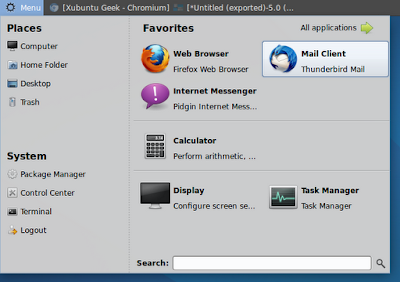
UPDATED: 25/07/12 Here's the instructions for adding the Linux Mint Menu to Xubuntu. Linux Mint Menu running on Xubuntu 12.04 Install Mint Menu NOTE: Before proceeding please confirm that you have Xfce 4.10 installed (Applications Menu > About Xfce), because xfce4-xfapplet-plugin depends on libxfce4util6 >= 4.9.0 and xfce4-panel >= 4.9.2 and those versions are available in the Xfce 4.10 Dev PPA. You can learn on how to install Xfce 4.10 here .   Copy and paste the line below on a terminal window. This line adds the Linux Mint repository and its key and then installs mintmenu and xfce4-xfapplet-plugin packages. echo 'deb http://packages.linuxmint.com/ maya main upstream import' | sudo tee /etc/apt/sources.list.d/linuxmint.list && key=3EE67F3D0FF405B2 && gpg --keyserver subkeys.pgp.net --recv-keys $key && gpg --armor --export $key | sudo apt-key add - && sudo apt-get update && sudo apt-get i...